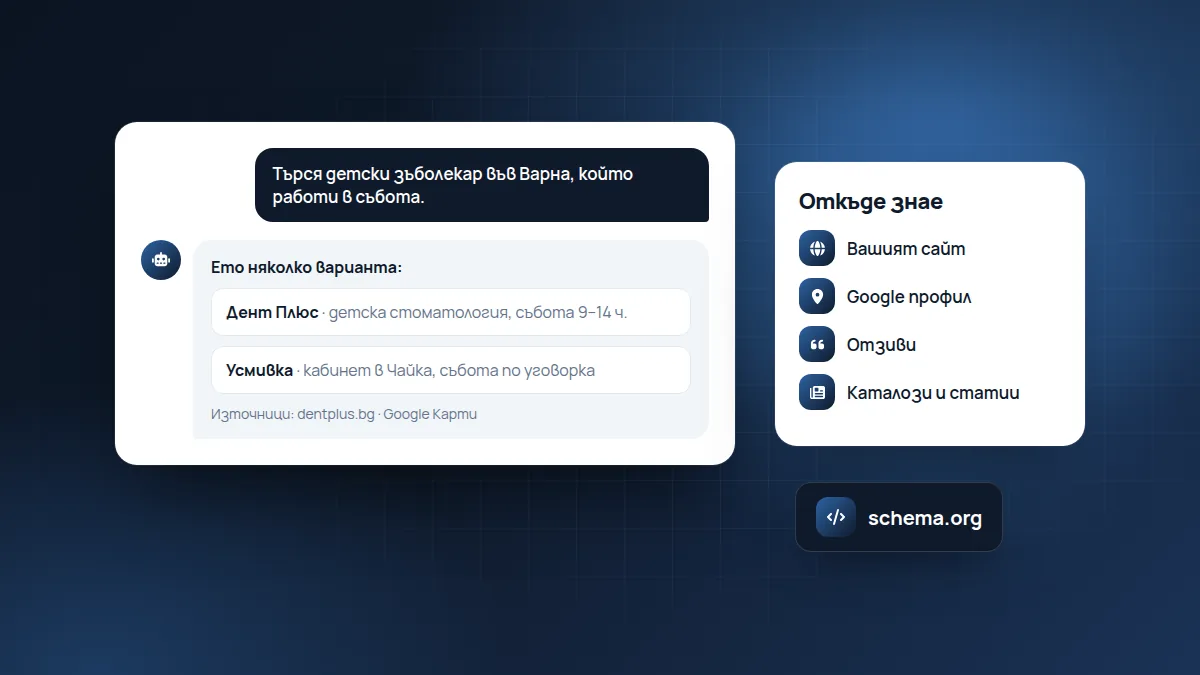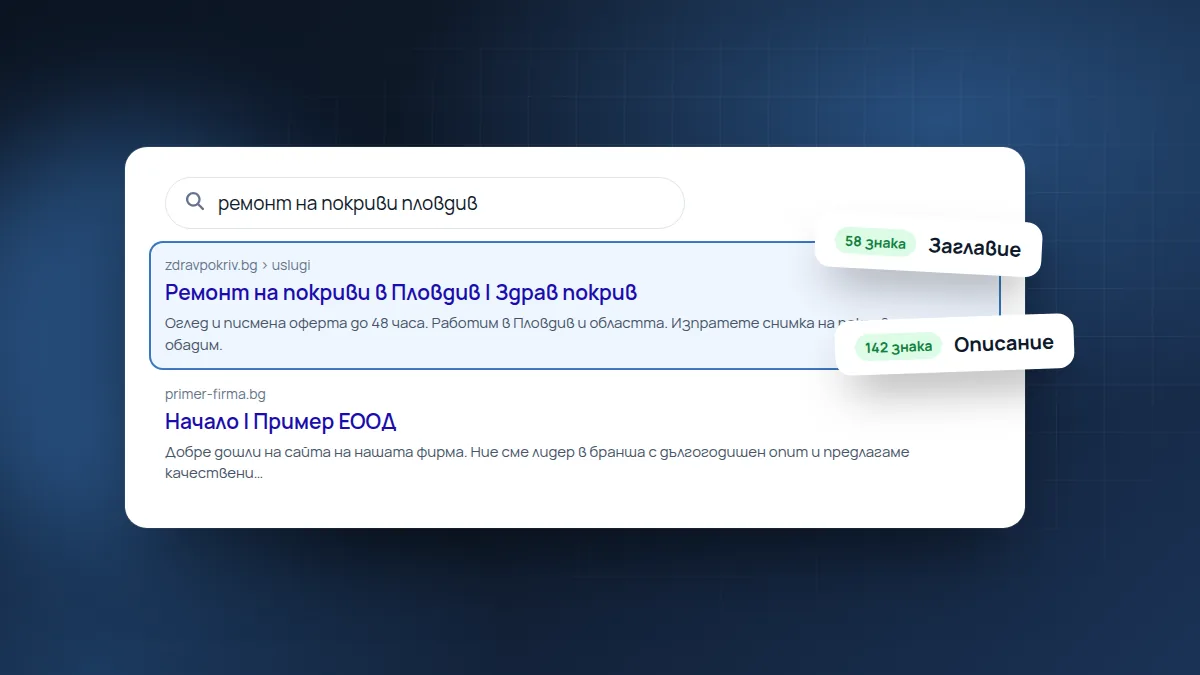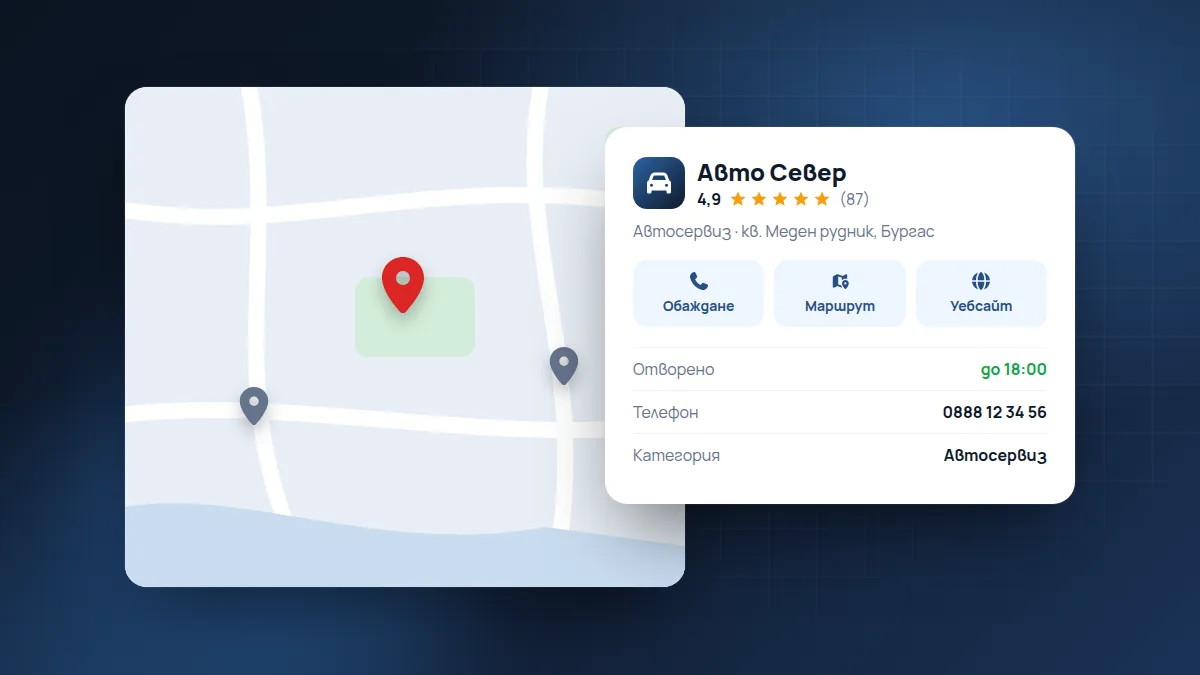
When someone searches “dentist Varna”, the first thing they see is the map with local businesses. Here is how to appear there with complete and accurate information.
When someone searches for “car repair Burgas” or “hairdresser near me”, Google shows a map with a few businesses even before the regular results. Those businesses come from Google Business Profile. The profile is free, and for many local businesses it brings more calls than the website itself.
Here is how to do it right the first time, step by step.
Step 1: Create or claim the profile
Go to business.google.com with your company email and search for your business. Sometimes a profile already exists, created by Google or by a customer. In that case, request ownership of it. Google will verify you with a code by post, by phone or with a short video.
A tip for the video: Google wants to see that the business is real. Film the sign or the entrance from outside, then the inside and something that shows you work there: tools, a till, a workstation. It doesn’t have to look pretty, it has to be clear.
Which email to use: use a company email or one that both owners can access. Don’t hand the profile over to someone else’s email, even the person who helps you with marketing. If needed, add them as a manager and keep ownership with you.
Step 2: Fill in everything, not just the name
- Name: the exact name of the business as it appears on the sign. No added words like “Best Car Repair Burgas”. That is against the rules and can lead to the profile being suspended.
- Category: choose the most accurate primary category, for example “Dental clinic”, not just “Health”. You can add secondary ones too.
- Address or service area: if you go to customers, for example roofers or plumbers, list the cities instead of showing your home address.
- Opening hours, including public holidays. Nothing is more annoying than a closed door when Google says “open”.
- Phone and website: the same as on your website, written in the same way.
- Description: two or three sentences about what you do and for whom, without a list of keywords.
- Services and products: the profile has a separate section for them. Add your main services with a short description and a price if possible.
- Attributes: wheelchair access, parking, card payment, Wi-Fi. People filter by them.
An example description
Family car repair shop in the Meden Rudnik district of Burgas. We repair engines, suspension and brakes on passenger cars, and change tyres and oil. We work Monday to Saturday and give a written quote before the repair.
Short, specific and using the words people search for.
Step 3: Photos
Upload photos of the entrance from outside so people can find you, of the interior, the team and your work. Phone photos are perfectly fine as long as they are bright and clear.
Which photos to have:
- Logo and cover. The logo as a square, the cover horizontal.
- The entrance from outside, ideally from the direction people arrive from.
- Inside: waiting room, salon, workshop, dining room.
- Your work: finished projects, dishes, haircuts, repaired cars.
- The team, if you’re comfortable being shown. Faces make a business feel closer.
Add a few new photos every month. Profiles with regular new photos look alive.
Step 4: Reviews
Ask satisfied customers for a review right after the service, while they’re happy. Send them the direct link to the review form. Reply to every review, including bad ones, calmly and to the point.
A good reply is short, personal and mentions something specific from the review. For a bad review, reply calmly, acknowledge the problem and offer to resolve it by phone.
Step 5: Keep it alive
Update the opening hours when they change, add new photos and answer questions in the profile. An active profile looks more reliable to both people and Google.
You can also publish short posts in the profile: a new service, a change in opening hours, a seasonal offer. They appear directly in Google when someone finds you.
Common mistakes
- Two profiles for one business. This happens when someone creates a new one instead of claiming the old one. Google may suspend both. If you have a duplicate, ask for a merge through support.
- A different address or phone number in the profile and on the website. This confuses both people and Google.
- Keywords in the name. It looks like a clever move, but it is the most common reason for a suspended profile.
- A profile created by a former employee or by an agency you no longer work with. Check who has access under “People and access” and remove anyone who shouldn’t be there.
Frequently asked questions
Can I have a profile if I don’t have an office?
Yes. If you serve customers at their address, choose a business with a service area and hide the address. List the cities and districts you work in.
How long does it take to appear on the map?
After verification, the profile usually appears within days. How high it ranks depends on proximity, how well it is filled in and your reviews.
Does it cost anything?
The profile is free. You only pay if you decide to run Google ads.
If you’d like us to set it up and maintain it for you, see the Google Business Profile and reviews service or the packages.
Found this article useful? Share it.